Zapier
Written By Andrew Petrovics
Last updated 12 months ago
Integrating Video To Blog with Zapier allows you to export your blog post to the thousands of apps that Zapier supports. In this guide, we’ll use Google Docs as an example a walkthrough how you can export your blog posts to Google Docs via a Zapier integration.
Step 1 - Create a Zapier API Key
Go to your integrations page
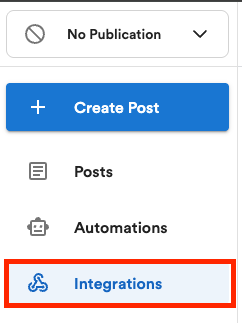
Note: If you do not see an Integrations option, be sure you have “No Publication” selected on the top left drop down.
On the integrations page, find Zapier option and click on the Connect button. This will generate an API key that you need to copy.

Step 2 - Create a Zap
Log into your Zapier account.
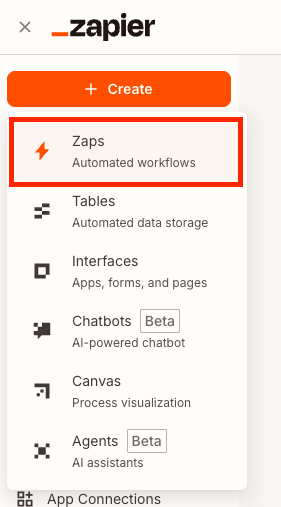
Click Create, then select Zaps
Set Up Trigger
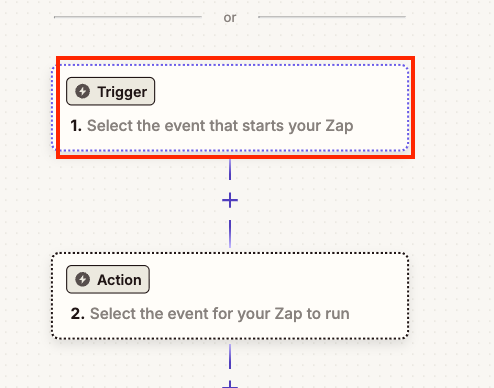
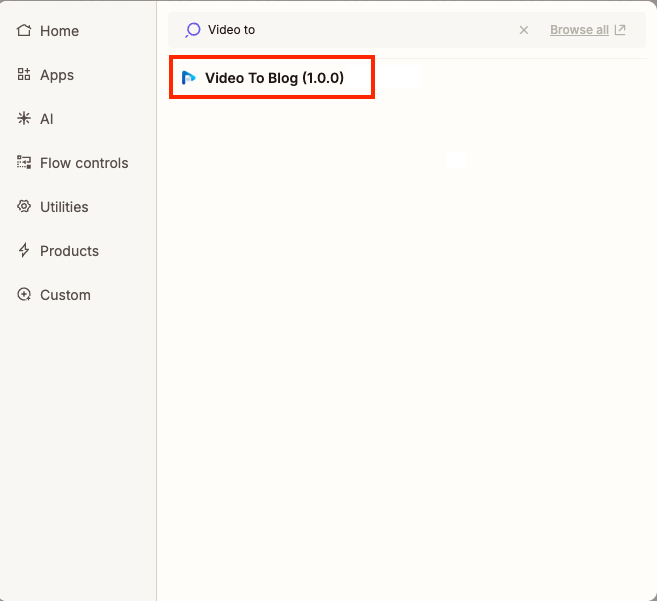
Click Trigger, then search for "Video to Blog" and select it.
Select Post Exported as an Trigger event
Then, click the sign in button in the Account box and click Connect a new account
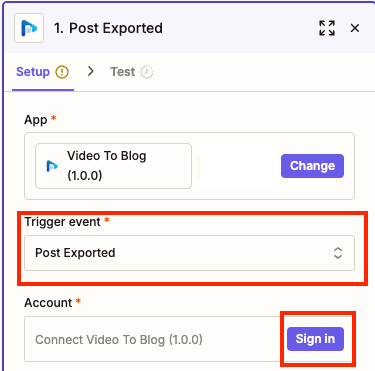
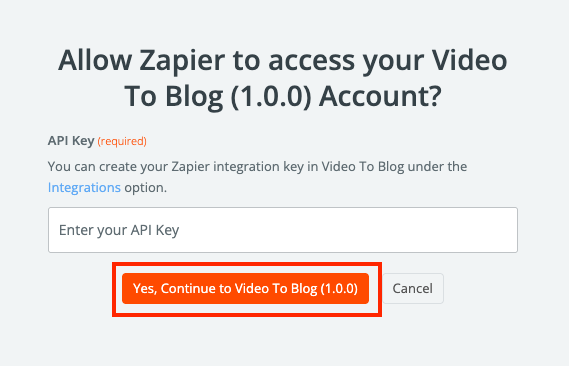
Enter the API key you generated earlier, then click Yes, Continue to Video To Blog button and then click the Continue button.
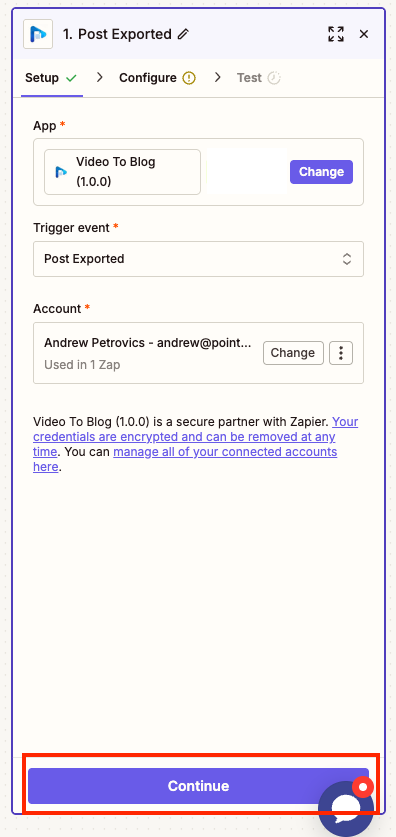
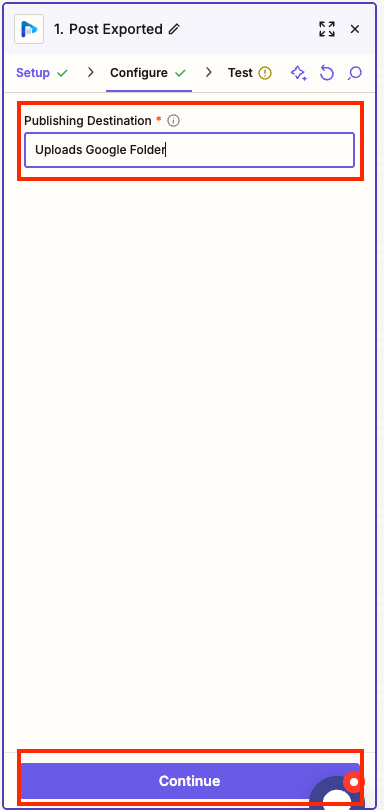
Fill out the "Publishing Destination" Field. Enter a suitable name to identify the publishing destination of your post (eg. Uploads Google Folder), then click continue
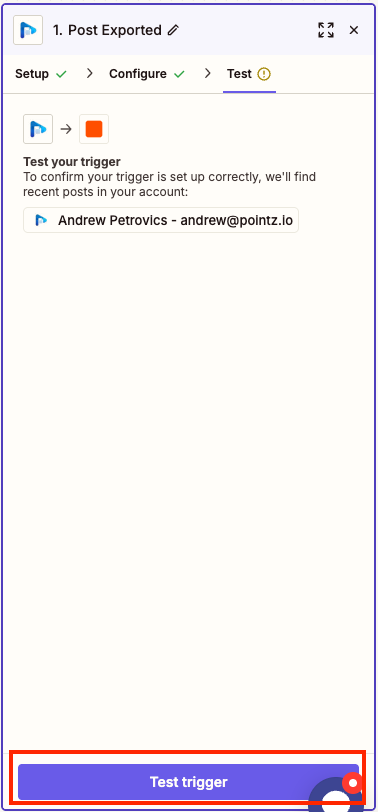
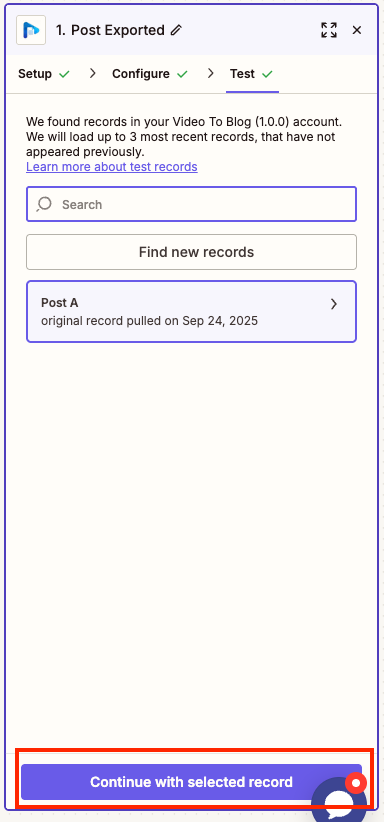
Click Test Trigger, Zapier will create a test record. Select it, then click Continue with test record
Set Up Action
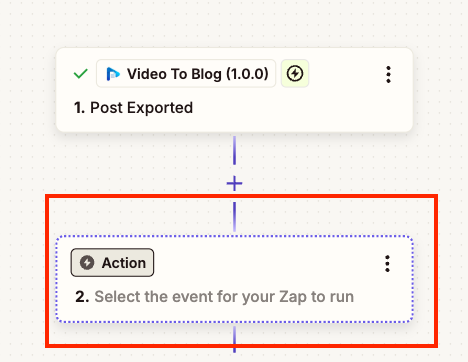
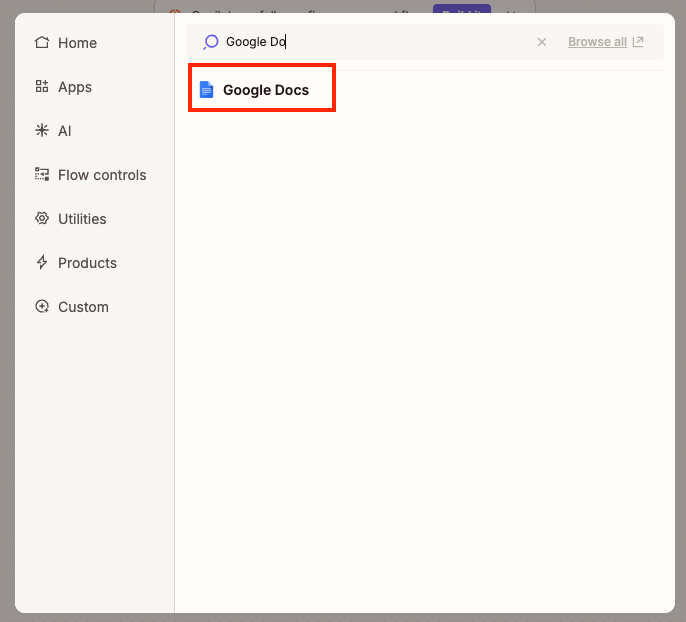
Click Action, then search for an application then select it. For the example below, we've selected "Google Docs" as an "action." Note: The specifics of the next steps will differ depending on the action you've selected, but the flow will be the same.
Sign into your Google account
Select Create New Document as Text as an Event, then click Continue
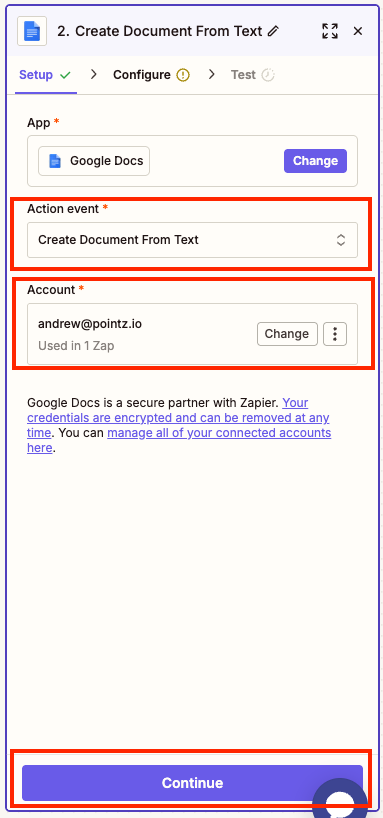
Complete the following fields by using the mapped field inputs (type “/” to see the mapped fields), then click Continue
Documet Name → Title
Document Content → HTML
Google Folder - select a Google folder where you want the document to be saved
Note - Depending on your Zapier destination you can map other and/or different fields. We provide you with meta data, HTML, markdown, and more fields that you can use depending on your use case.
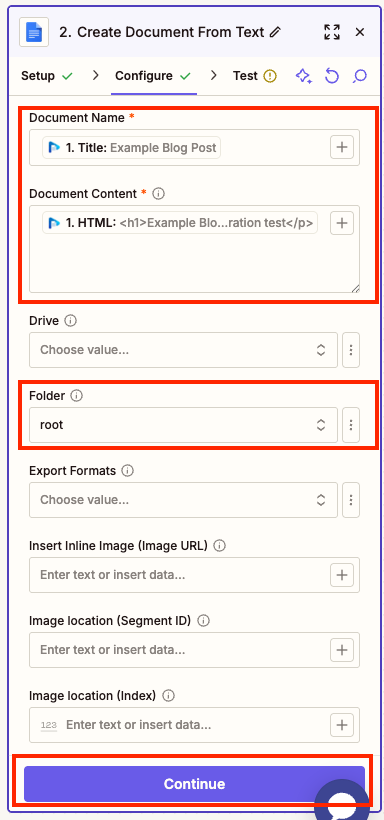
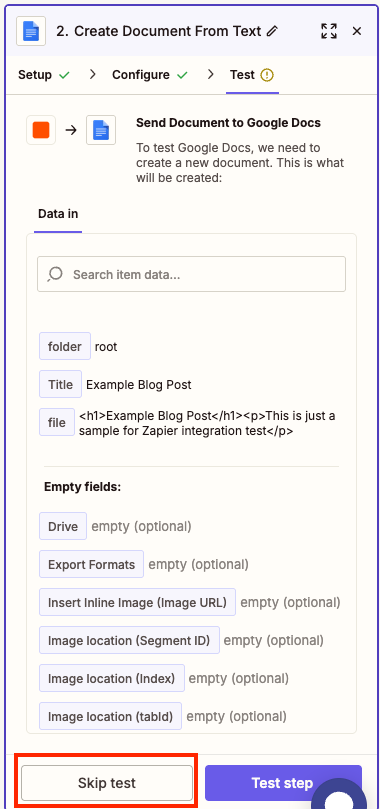
Click Skip test
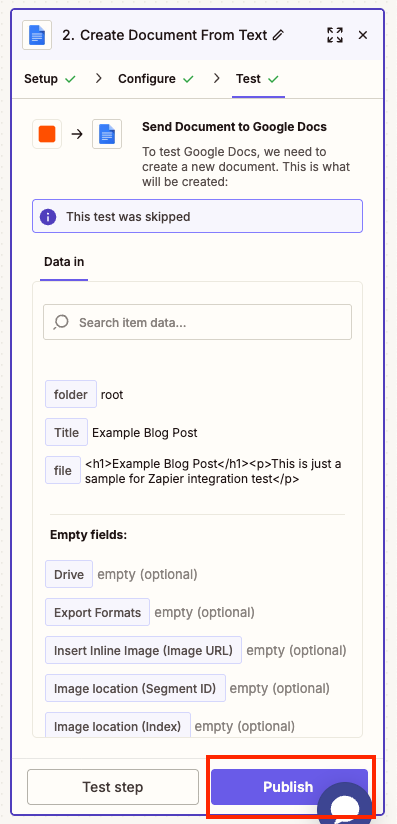
Click Publish. Don't forget to give your Zap a name.
Step 3 - Publish your Video To Blog post
In your Video To Blog account, open the post you'd like to publish to Zapier
Click the Export button located at the top right
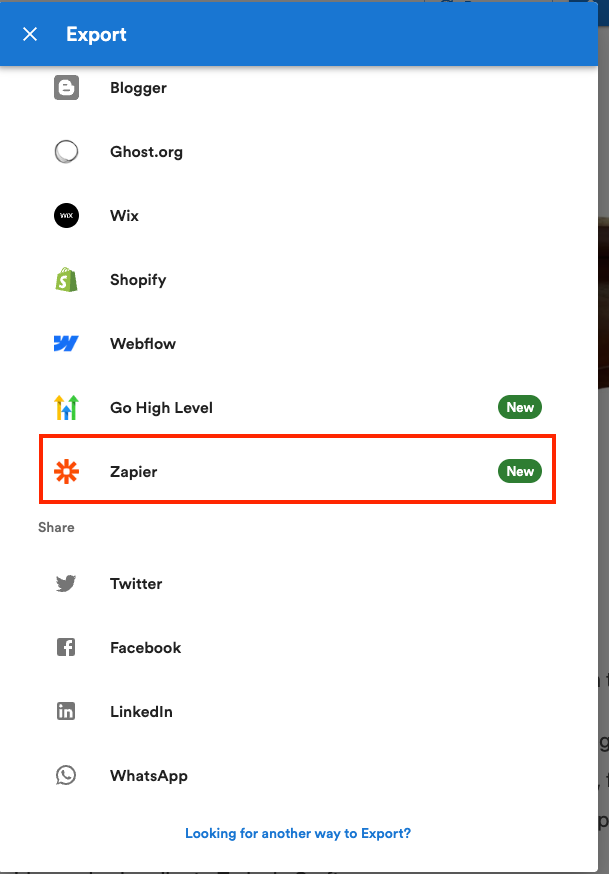
On the "Export" dialog, select the Zapier option
Then, select your Zapier destination from the drop down and click Publish
That’s it! Your post should now be in the destination you configured in the Zapier trigger (in this example, Google Drive).